
Ask anyone who has managed both platforms: email signatures in Google Workspace work nothing like they do in Microsoft 365. Outlook has add-ins that inject the signature while a person writes. Gmail has no such thing — there is no compose-time hook a third party can use. The signature that appears under a Gmail message is whatever is stored in that user's settings at that moment.
That one architectural difference explains almost every headache teams hit: signatures drift, updates don't propagate, and "just tell everyone to paste the new version" fails by the second week. This guide walks through how Gmail signatures actually work, how to manage them centrally, and how to keep a thousand mailboxes consistent without touching a single one by hand.
Push, not pull: how Gmail signatures really work
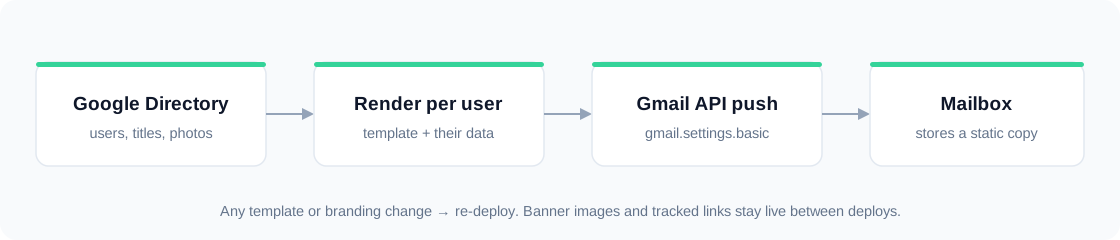
In Microsoft 365 a managed signature is pulled fresh at compose time. In Google Workspace it must be pushed: an admin tool writes the rendered HTML directly into each user's Gmail "send as" settings through the API. Once written, Gmail serves that static copy until somebody overwrites it.
Three consequences follow:
- Every change needs a re-deploy. New logo, new legal line, new campaign — the stored copy is stale until you push again.
- Personalization happens before the push. The tool renders each person's name, title and photo into their copy; Gmail itself does no templating.
- Nothing stops manual edits. A user can still change their own signature — so visibility into who is out of date matters as much as the push itself.
The push model isn't worse than Outlook's pull model — it's just different. With the right tooling, deployment to the whole domain takes one click.
What you need before you start
Central signature management in Google Workspace runs on a service account with domain-wide delegation — a robot identity allowed to act on behalf of your users for a narrow set of scopes:
- A Google Cloud project with a service account and a JSON key.
- Domain-wide delegation enabled for that service account in the Admin console.
- Scope
admin.directory.user.readonly— to read your user directory. - Scope
gmail.settings.basic— to write each user's signature. - An admin email the service account impersonates for directory reads.
This is a read-users, write-signatures setup: the tool never reads mail content and never sends anything. Scoping it this narrowly is what makes security reviews painless.
The deployment workflow that scales
1. Sync the directory
Pull users from Google Directory into team segments — sales, support, engineering. Names, titles, phones and photos come along, so signature data is never typed by hand.
2. Map templates to segments
Design one template per audience, not per person. Sales gets the booking-link layout; support links the help center; executives keep a minimal card.
3. Deploy in one action
The tool renders each person's signature from their template and directory data, then writes it to their mailbox via the API. A thousand mailboxes take minutes, not afternoons.
4. Verify, don't assume
Good tooling tracks a content hash per user: deploy a change and the dashboard shows exactly who is up to date, who is stale, and who failed (with the error, per person — not a buried log file).
Keeping signatures fresh between deploys
Because Gmail stores a static copy, anything dynamic must be fetched at open time instead of baked in. The pattern that works: keep the signature HTML stable, but serve the campaign banner image and tracked links from your platform. Swap the banner centrally and every already-deployed signature shows the new creative on the next open — no re-push needed. Re-deploys are then only for structural changes: branding, layout, legal text.
Common pitfalls (and the fixes)
- Aliases and shared mailboxes get skipped. Decide explicitly: deploy to primary addresses, and exclude service accounts and shared inboxes with a per-person toggle.
- Users overwrite their signature. Re-deploys reset drift; the status dashboard tells you where drift happened.
- Images break in dark mode. Use solid background colors and PNGs designed for both modes.
- The signature is one giant image. When images are blocked it disappears entirely. Always table-based HTML with inline styles.
- Nobody owns the channel. Assign one owner for templates and campaigns — signatures rot when they're everyone's job and no one's.
Do it with GraceMark
GraceMark implements this entire model for Google Workspace out of the box:
- Service-account connection with read-only directory sync into segments
- Template designer with email-safe HTML and per-segment mapping
- One-click deploy to every mailbox, with per-employee success/failure status
- Automatic nightly sync and optional auto-deploy after each sync
- Centrally swappable campaign banners and tracked links — no re-push needed
Frequently asked questions
Can Google Workspace signatures update automatically when someone changes roles?
Yes — if your tool syncs the directory and re-deploys. The title change lands in Google Directory, the next sync picks it up, and the next deploy rewrites the signature.
Do pushed signatures show up in the Gmail mobile app?
The deployed signature applies to Gmail on the web automatically. The Gmail mobile apps keep a separate "mobile signature" setting; leave it empty so the deployed web signature is used for mail sent from mobile web, or standardize teams on web/desktop sending.
Is domain-wide delegation safe?
Scoped correctly, yes. Grant only directory read and signature write — never mail read scopes — and the service account can do exactly two things: list users and set signatures.
How often should we re-deploy?
After any branding or legal change, after directory syncs that changed people's details, and on a schedule (nightly works well) so drift never accumulates.